Recommended for Windows
Windows installer
64-bit Windows 10 version 1809 or later, and Windows 11. Creates a Start menu entry and an uninstaller; does not require administrator privileges.
Download Windows installer

ECOMOSAIC Kft.
Jegyzőkönyv Generátor
3.0.5
Installation and user guide
for Windows and Linux
Release: July 2026
Version 3.0.5 stable release
Edit HRAMN remote-sensing reports, save projects securely, and create standardised HTML output and searchable PDFs.
For 64-bit Windows 10/11 and 64-bit Linux systems with glibc 2.38 or later.
Download
The installer is the simplest option for Windows. The portable versions are not installed: extract the complete package, then start the application from the extracted folder.
Recommended for Windows
64-bit Windows 10 version 1809 or later, and Windows 11. Creates a Start menu entry and an uninstaller; does not require administrator privileges.
Download Windows installerNo installation required
64-bit Windows 10/11. It can also be used from a USB drive if the device is writable and has sufficient free space.
Download Windows ZIPPortable for Linux
64-bit Linux with glibc 2.38 or later. No separate Python installation is required.
Download Linux TAR.GZThe checksum confirms that the download is not corrupt and is byte-for-byte identical to the tested release.
| File | SHA-256 |
|---|---|
| Windows installer | 0a50d567d1e11a7d03ccaea4fb32ecc1c5ce0329ddf4913b6b8ba8b373e7fe67 |
| Windows portable ZIP | 6e5bbc71602f95687cec5b6a9300ad69fdbe02083d2050d902c3d4e5f67aa66d |
| Linux portable TAR.GZ | 134ea3945e133037c7768dd93b48be358f9c8f17ff7894e9708986e6c736cc02 |
Exact verification commands are provided under Verifying the download.
1
Jegyzőkönyv Generátor records the metadata of an aerial survey or photogrammetry project in a consistent format. It creates a continuously updated preview from the form on the left, then produces HTML and PDF versions from the same saved project state.
Professional review is required. The application formats the supplied values and detects several errors, but the user is responsible for the professional accuracy of the data, the rights to use images and logos, and permission to publish the material.
2
The installer provides the simplest workflow for most Windows users.
The file name is JegyzokonyvGenerator-3.0.5-windows-x86_64-Setup.exe. Wait until your browser has fully completed the download.
Use the SHA-256 verification, particularly if you received the installer on a USB drive or through another intermediary.
Save the open project, then close the application. The installer will notify you if an instance is still running.
Double-click the downloaded EXE. Installation takes place under your own user account, so an administrator password is not normally required.
Version 3.0.5 is not signed with an Authenticode certificate, so Windows may display “Windows protected your PC”. If, and only if, the file name and SHA-256 value match, select More info, followed by Run anyway. Do not disable SmartScreen or antivirus protection globally.
Read the licence terms, choose whether to create a desktop shortcut, then begin installation. A Jegyzőkönyv Generátor shortcut is created in the Start menu.
Start the application from the Start menu. It creates the user-data and log folders on first launch. An internet connection is not required for normal editing or export.
3
The portable package runs from a separate folder without installation. It stores its settings, logs, default projects and exports in the data folder beside the application files.
Save the complete JegyzokonyvGenerator-3.0.5-windows-x86_64-portable.zip file to a local drive.
In File Explorer, select Extract all. Do not start the EXE directly from the ZIP preview.
main.dist folderAll files in the main.dist directory at the root of the ZIP are required. Do not move the EXE out of this folder on its own.
Double-click JegyzokonyvGenerator.exe. If SmartScreen appears, use the same verification process as for the installer.
When using a USB drive: the drive must be writable, remain securely connected and have sufficient free space. Do not unplug it while working. A slow or faulty storage device may cause save and export errors. Keep another copy of important work on a separate drive.
4
The package contains its own Python and Qt dependencies, but uses the system glibc library.
64-bit x86-64 Linux with glibc 2.38 or later is required. A graphical Linux desktop session and the usual X11 or Wayland, OpenGL/EGL, XCB, xkbcommon, fontconfig and D-Bus system libraries are also needed. The package is not intended for Alpine/musl, headless or minimal server systems. Check the architecture and glibc version in a terminal:
uname -m
ldd --version
The expected result of the first command is x86_64. The glibc version shown by the second command must be at least 2.38.
tar -xzf JegyzokonyvGenerator-3.0.5-linux-x86_64-portable.tar.gz
cd JegyzokonyvGenerator
chmod +x JegyzokonyvGenerator
./JegyzokonyvGenerator
The chmod command is normally required only before the first launch. Keep the complete JegyzokonyvGenerator directory together: the application will not work without the Qt, font, template and licence files beside the executable.
In the properties of the extracted JegyzokonyvGenerator file, allow the file to run as a program, then start it by double-clicking. The exact wording varies between desktop environments.
Verification
Compare the entire 64-character result with the value published on this page. Even one different character means that the file is corrupt or has been altered.
Important: SHA-256 confirms that the file is identical to the tested byte sequence published on this page. It does not replace the missing digital signature and does not by itself verify the identity of the publisher; therefore, accept the checksum only from the official HTTPS page.
Get-FileHash .\JegyzokonyvGenerator-3.0.5-windows-x86_64-Setup.exe -Algorithm SHA256For the portable ZIP, replace the file name in the command with the ZIP file name.
certutil -hashfile "JegyzokonyvGenerator-3.0.5-windows-x86_64-Setup.exe" SHA256sha256sum JegyzokonyvGenerator-3.0.5-linux-x86_64-portable.tar.gz5
.jkvproj project folder.Recommended workflow: create and save a project first, save regularly while working, and review the preview before export. Updating the live preview does not by itself save the project.
6
The editable fields are on the left side of the window, while the browser preview of the report is on the right. You can drag the divider between the panes. At narrower widths, long labels wrap onto multiple lines so that the complete field name remains visible.
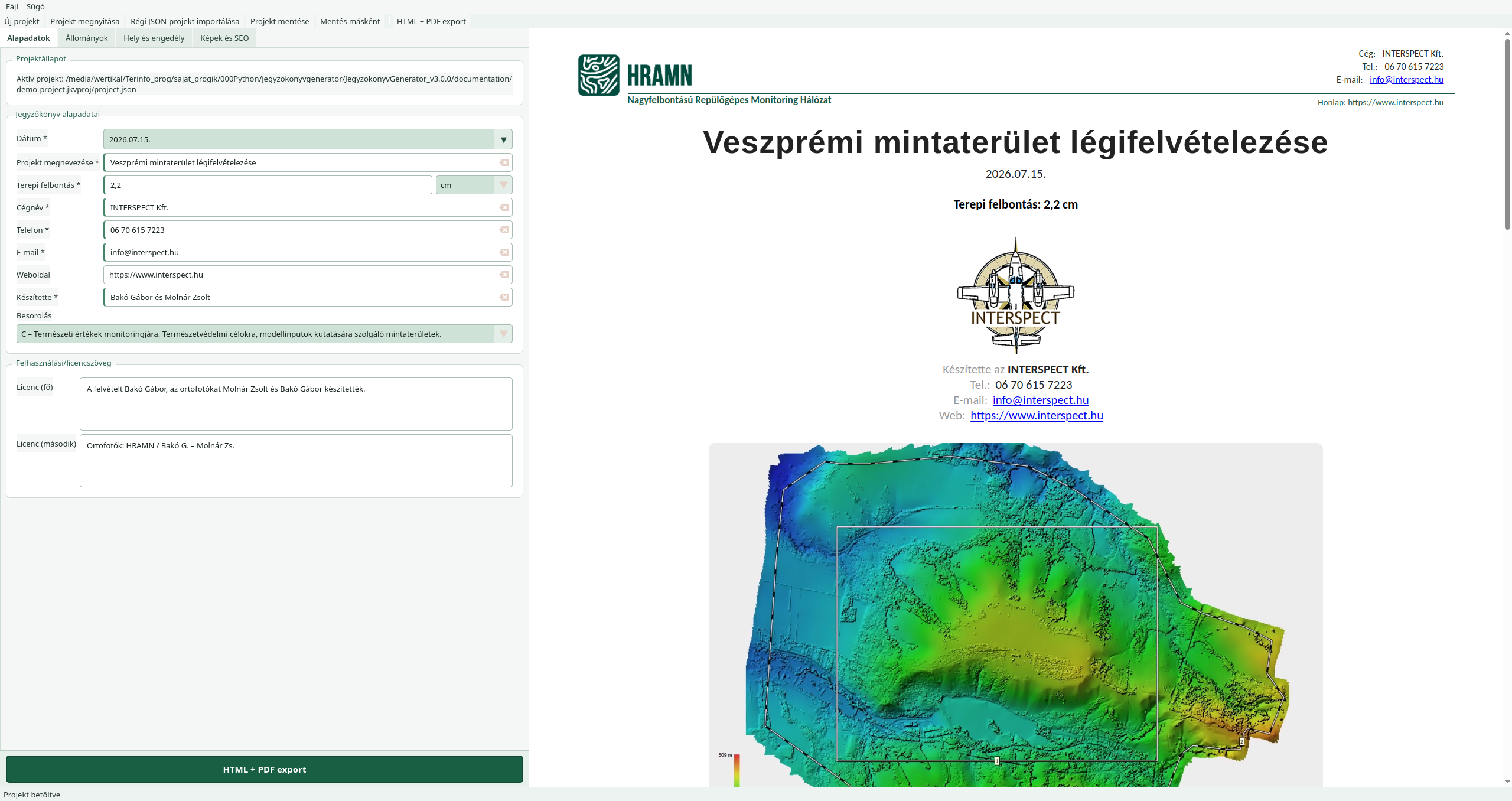
.jkvproj directory..jkvproj project.The preview updates after a short delay when you change a field. It retains its current scroll position during an update, so you can continue reviewing the same part of a long document. The preview is useful for checking content and on-screen appearance, but always review the final page breaks in the exported PDF.
6.1
Projektállapot (Project status) shows whether you are working on a new, unsaved project or identifies the active project. An asterisk in the title bar indicates unsaved changes.
The seven required fields are Dátum, Projekt megnevezése, Terepi felbontás, Cégnév, Telefon, E-mail and Készítette (Date, Project name, Ground resolution, Company name, Phone, E-mail and Prepared by). Missing values prevent export.
éééé.hh.nn. (yyyy.mm.dd.).mm, cm or m.6.2
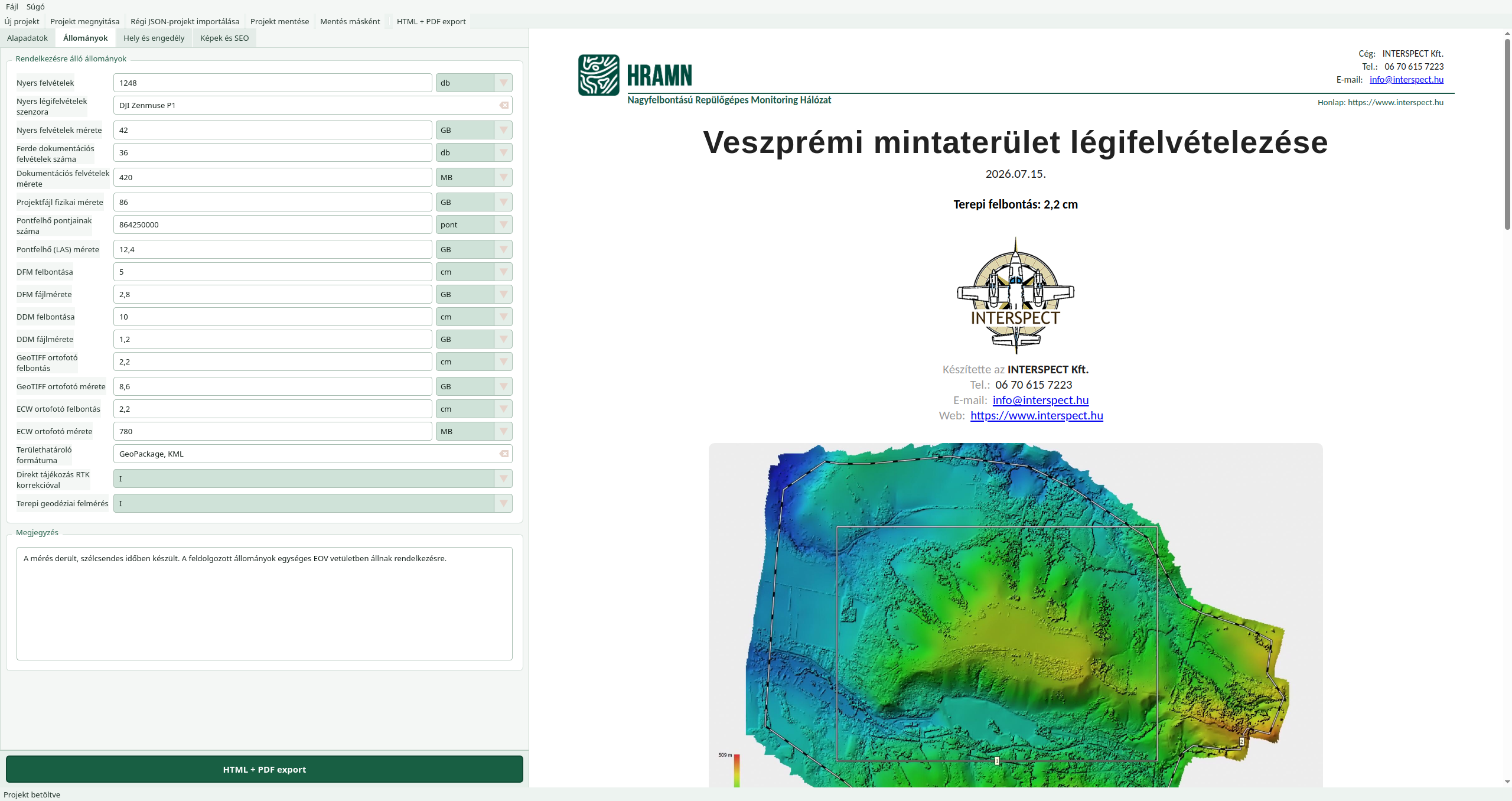
This tab lists the delivered datasets related to the survey and its processing:
Each numeric field has a clearly visible drop-down unit selector. Available units are mm, cm or m for resolution; MB, GB or TB for file size; db for item count; and pont for point count.
If a value is unavailable or not applicable, leave the value empty and select the Üres (Empty) unit. Do not type “nincs” (none), a dash or text containing a unit in a numeric field.
In addition to an empty value, the list offers I, N and –. Use them consistently according to the meaning adopted by your organisation; if no reliable information is available, leave the field empty.
6.3
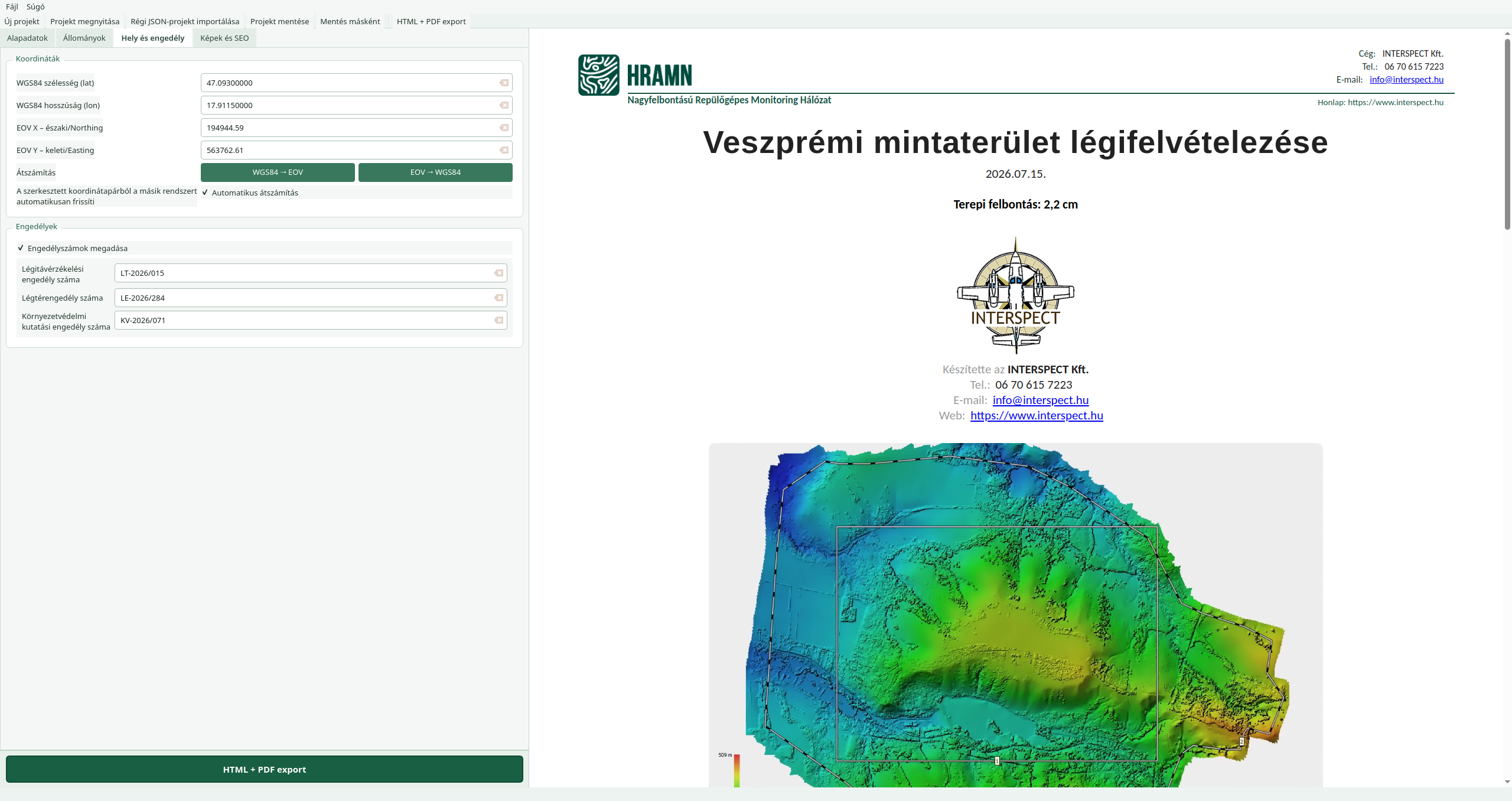
lat) first, followed by longitude (lon). Example: 47,4979 and 19,0402.Verification: conversion does not determine whether the entered point is professionally correct. Before export, compare it with a known map location and take particular care with the lat/lon and EOV X/Y order.
The fields for aerial remote-sensing, airspace and environmental research permit numbers appear when Engedélyszámok megadása (Enter permit numbers) is enabled. Disabling it clears the fields, so turn it off only if you genuinely intend to remove these data.
6.4
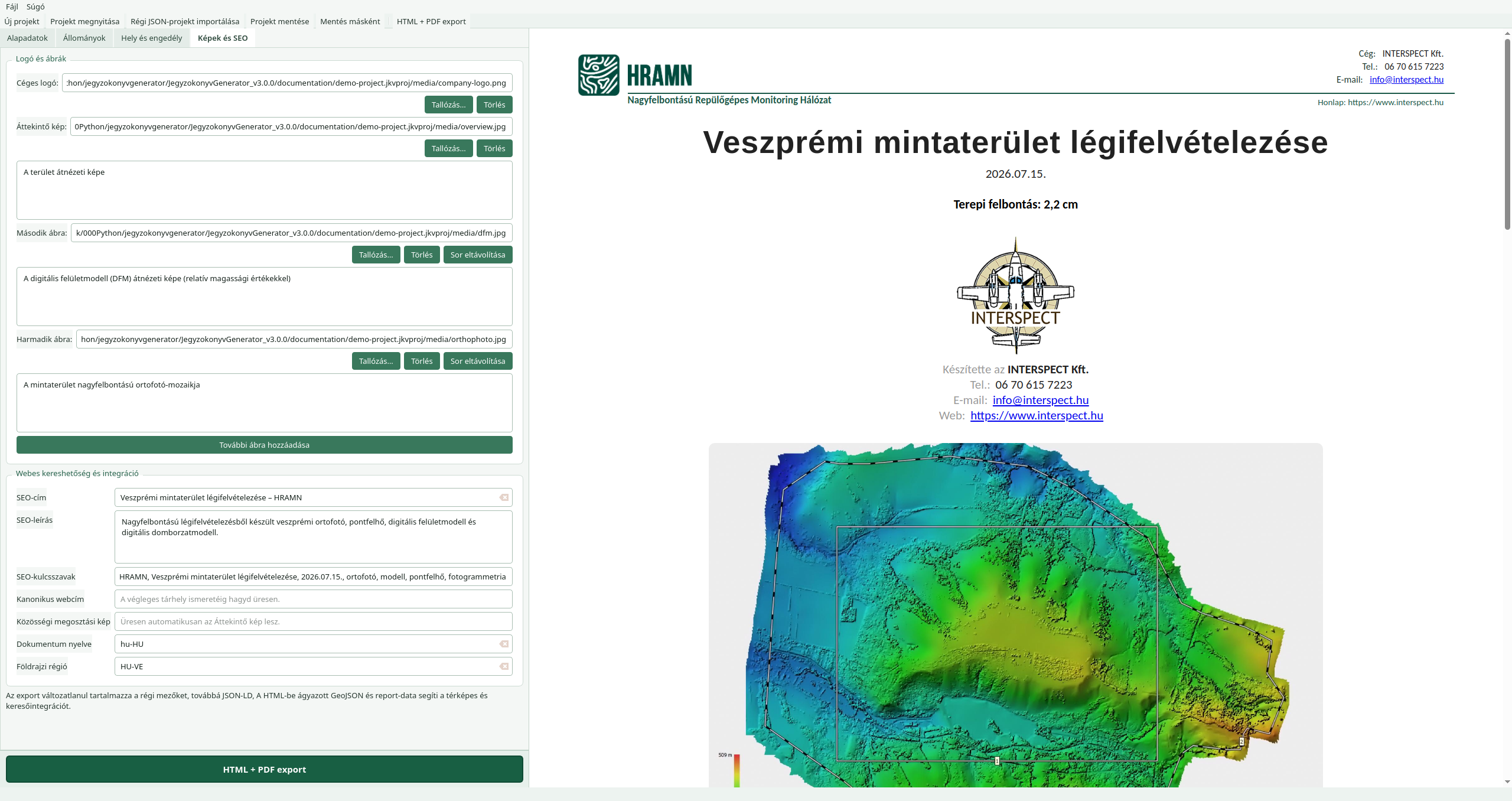
Supported image types are PNG, JPEG, WebP, GIF, BMP and TIFF. An image may be no larger than 100 MB or 100 million pixels. The application checks the actual image content, not merely the file extension.
You may add up to 100 additional figures to the project in addition to the Overview image.
Original and web images: when the project is saved, a secure copy of the original image is placed in the project’s media folder. During export, a reduced-size WebP image no wider than 650 pixels is generated from it for the website. The original project image is not modified.
http:// or https:// address. Leave it empty until final hosting and a permanent URL are available.https:// image URL. If left empty, the selected Overview image becomes the default sharing image; no automatic sharing image is created if there is no Overview image.hu or hu-HU. The default is hu.HU or HU-BU. The default is HU.7
.jkvproj project is a folder, not a single fileOn the first save, the application creates a directory such as veszprem-20260715.jkvproj. Its main contents are:
veszprem-20260715.jkvproj/
├── project.json       form data
├── media/             project copies of the original images
└── .project-save.lock hidden file used for save locking
The hidden .project-save.lock file is normal and does not indicate a stuck active lock. Do not delete it manually. When transferring the project to another computer, always copy the complete .jkvproj folder, not only project.json.
A legacy JSON file may reference external local image files, so import requires separate confirmation. The application imports valid images and may skip missing ones. Immediately after importing, select Mentés másként… (Save as) to create a self-contained, portable .jkvproj folder.
.jkvproj folder to another physical drive or to your organisation’s approved backup location.Do not work on the same project in two application instances. Save locking prevents several dangerous conflicts, but simultaneous editing from two computers in a shared network folder or synchronisation service may cause data loss.
8
Review all four tabs and the complete preview. Required fields are marked with an asterisk.
Click HTML + PDF export… at the bottom left, or press Ctrl+E.
Export does not start if an error is present. For warnings, the application lists the points to review and asks whether to continue.
If the project is new or has been modified, the application saves it before export. For a new project, it opens the Mentés másként… (Save as) dialog. If saving is cancelled or fails, no export is created.
The application automatically creates a subdirectory inside it, based on the date and project name. If an export with the same name already exists, it asks for confirmation before safely replacing it.
The progress indicator closes, then the Export kész (Export complete) message shows the exact location of the HTML file. Do not close the application during export.
jegyzokonyv-<datum>-<megnevezes>/
├── jegyzokonyv-<datum>-<megnevezes>.html
├── report-data.json
├── location.geojson
├── asset-manifest.json
├── media/
│   ├── jegyzokonyv-<datum>-<megnevezes>.pdf
│   └── web-optimised WebP images
├── style/
└── additional local font and presentation resources
The version 3.0.5 export folder also contains separate report-data.json, location.geojson and asset-manifest.json files. The structured report data, GeoJSON point and asset inventory are also embedded in the HTML. For this reason, the complete folder must be kept together.
PDF limitation: the output contains searchable and selectable text, but it is not a PDF/A archival document and is not a tagged, fully accessible PDF.
9
The completed HTML uses relative references to the PDF, styles, fonts, images and structured data files. Uploading only the HTML file is therefore insufficient.
jegyzokonyv-<datum>-<megnevezes> directory.Small web file size: images published on the website are in WebP format and no wider than 650 pixels, with their aspect ratio preserved. Large originals remain in the project and are not included in the export.
10
.jkvproj folders.Always extract the new archive into a new, empty folder. Do not mix application files from two versions. Copy the complete required .jkvproj project folders from the old data/projects folder, or open them from their original location. Delete the old portable directory only after successful testing and backup.
Open Settings → Apps → Installed apps, find Jegyzőkönyv Generátor, then select Uninstall. Make a separate backup of your projects before uninstalling; do not rely on retained user-data folders as your only copy.
Close the application, copy any projects and exports that you want to keep from the data folder, then delete the complete extracted application directory.
Data paths
| Mode | Data and projects | Settings and cache |
|---|---|---|
| Windows installed | %LOCALAPPDATA%\JegyzokonyvGenerator |
%APPDATA%\JegyzokonyvGenerator; the cache is inside the data folder |
| Linux standard mode | ~/.local/share/JegyzokonyvGenerator |
~/.config/JegyzokonyvGenerator and ~/.cache/JegyzokonyvGenerator |
| Windows/Linux portable | The data folder beside the executable application |
|
Inside the data folder, the projects, exports and logs subdirectories are the default locations. Projects and exports may also be saved elsewhere through the dialog. The simplest way to locate logs is to select Súgó → Naplómappa megnyitása (Help → Open log folder).
11
Verify the complete SHA-256 value. If it matches the official release, select More info → Run anyway in SmartScreen. Do not disable system-wide protection. If an organisational policy blocks the file, approval from your system administrator is required.
Make sure that you extracted the complete ZIP, that all contents of main.dist remain together, and that you are not running the EXE from inside the ZIP or after copying it separately. Try running it from a local, writable folder.
Your system’s glibc version is older than the required 2.38. Check it with ldd --version. Use a newer supported Linux release; manually replacing the system glibc is not recommended.
Run chmod +x JegyzokonyvGenerator in the extracted application folder, followed by ./JegyzokonyvGenerator.
libqxcb.so or missing-library errorOne of the graphical system’s X11/Wayland, XCB, OpenGL/EGL or xkbcommon dependencies is missing. Check the binary with ldd ./JegyzokonyvGenerator | grep "not found", then use your distribution’s package manager to install the reported system library. If a Wayland display error occurs and XWayland is installed, try starting the application with QT_QPA_PLATFORM=xcb ./JegyzokonyvGenerator.
2,2 cmEnter only 2,2 in the numeric field and select cm from the adjacent list. Either a comma or a point may be used as the decimal separator.
Check that both the value and its appropriate unit have been entered. If a non-empty number has the Üres (Empty) unit, the number may appear without a unit; only optional data with an empty value may be omitted. Save the project, then export it again.
Check that it is a genuine PNG, JPEG, WebP, GIF, BMP or TIFF image, no larger than 100 MB and no more than 100 million pixels. The application rejects corrupt files and files with a misleading extension.
You probably copied only project.json. Copy the complete .jkvproj directory, including its media folder.
Do not upload only the HTML. Upload the complete export folder again, preserving the names and locations of media, style and every other subdirectory. Letter case also matters on Linux hosting.
Read the full error message, complete the required fields and correct invalid image references. Check the free space and write access on the destination drive. For a new project, complete the Mentés másként… (Save as) process first.
On its next launch, the application attempts to safely restore or isolate the incomplete state. If it displays a warning, do not delete files at random: record the exact message, check the affected export root and prepare a support package.
Wait for the preview to update, then save and try another export to a writable local folder. If the problem recurs, restart the application, open the saved project and collect the log. Do not overwrite your only working export while investigating.
Support
Send the package to the contact person or support channel from which you received the application. The following information helps speed up troubleshooting:
.jkvproj folder that reproduces the error and/or the complete problematic export folder;Data protection: projects and logs may contain personal, business, location or licence information. Review the material before sending it and share it only with an authorised recipient. Never include passwords, secret keys or access tokens in a support package.
Printable reference